TrackerBetaTesting
Beta firmware and reporting. For official releases go to https://polyend.com/downloads/
Testing Pre-release Builds of the Tracker firmware
Before you begin
Hi there! Are you interested in testing beta versions of the next Tracker firmware? Great, we’re glad to hear that. Let’s just set some expectations up-front: beta releases are provided on an “as is” basis. That means any of the following:
-
they may introduce new bugs that may lead to loss of work or crashes during performance;
-
they may introduce new features that will probably not be documented before the next stable release;
-
they may change or remove previously existing features, both documented and undocumented; and
-
they may change the data format of the projects or instruments you save, making it impossible to open them with an older firmware version.
If you find those risks acceptable, let’s get you started!
Download a .ptf file
You can find the latest .ptf files in the
Releases section
of this repository. Note that the “Source Code” in each release doesn’t
actually contain Tracker’s sources but just this repository’s files,
including the one you’re reading now.
Put the .ptf file on your SD card
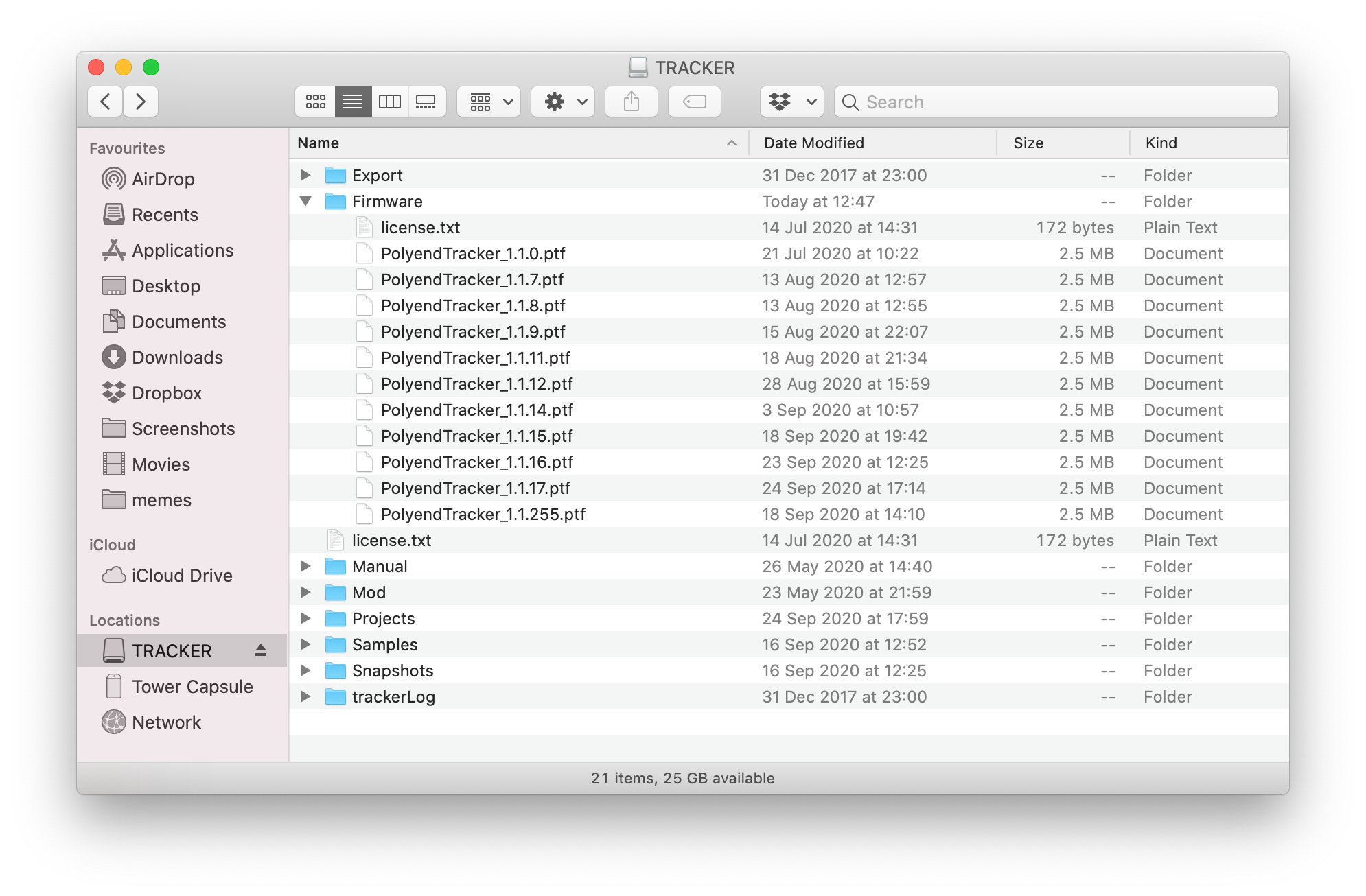
In order to put the firmware .ptf file in the SD card Firmware/ folder
next to other .ptf files, you can use:
- the bundled microSD USB adapter to connect the SD card to your computer,
- the second emergency flashing procedure (explained at the very bottom of this doc), when you have the Polyend Tool already on your computer.
If you erased your card and don’t have the latest stable firmware nor the factory content, get it from the Polyend website and official SD card content link.
Put the SD card back in your Tracker and go to Config
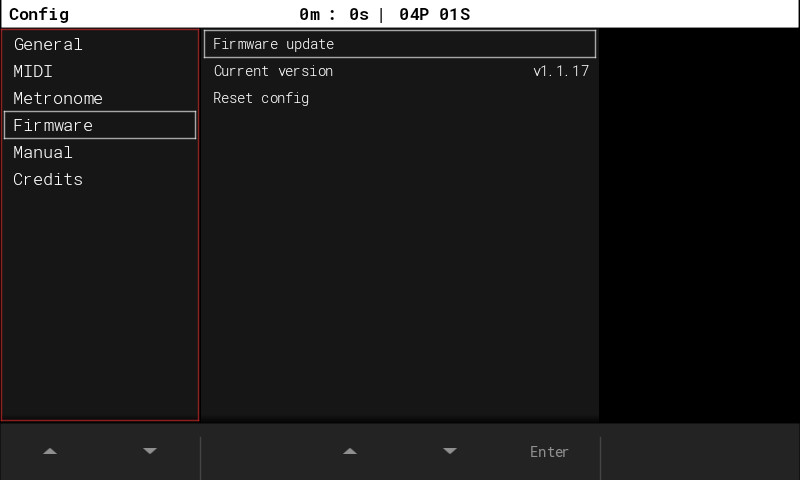
In the Firmware section you’ll find a “Firmware update” feature. Enter it.
Select the firmware you want
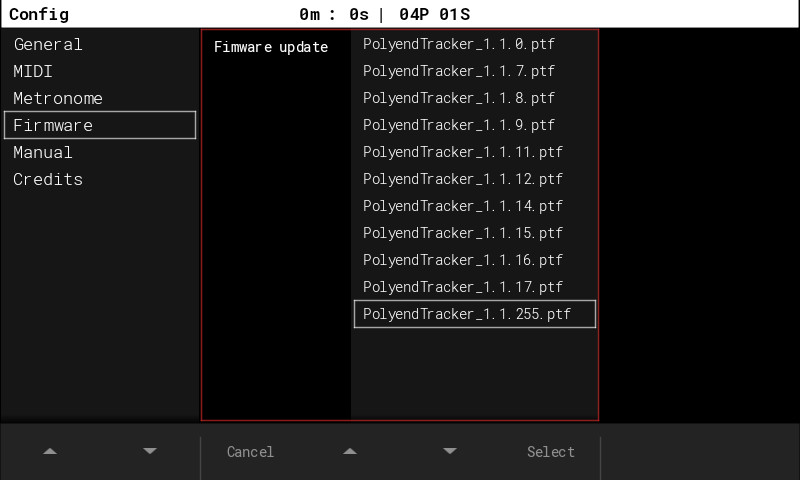
After selecting the right file, press Select and wait for the upgrade to finish. You should see it progress through the file and restart the device.
How to get notified about new releases?
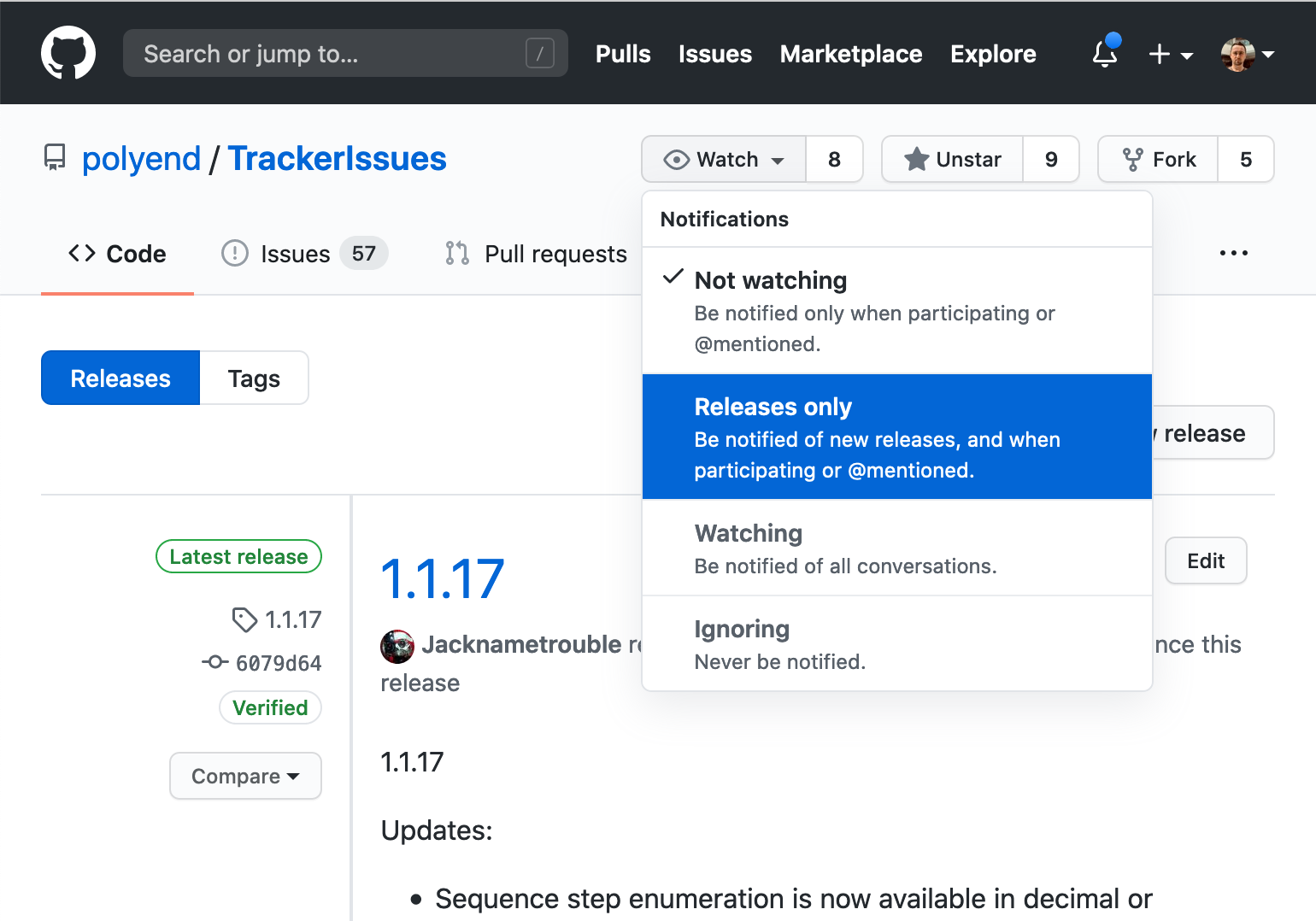
If you sign up for GitHub and subscribe to our TrackerIssues repository, you’ll get notified about new releases:
You can also sign up for our official Polyend Tracker group on Facebook.
If you find bugs
That’s why we’re testing! Report them here.
But first, if you’re upgrading between beta releases, check the following:
-
use the “Reset Config” feature in the Firmware section of the Config screen to ensure your problem wasn’t related to some configuration format changes between beta releases;
-
delete the hidden “Workspace” folder from your SD card to ensure your problem isn’t caused by changed data formats;
-
disconnect power from the device for a few seconds.
In case of trouble
First and simplest action to try is to disconnect the USB C cable connector from its port on the back panel of the instrument. This usually helps.
But if your device lost power during the upgrade, the SD file was damaged, or the firmware doesn’t boot up for any other reason, you can perform one of the two emergency flashing procedures as follows:
First method:
- just simply press the hidden reset button on the back panel of the
instrument and it will automatically flash with a randomly picked firmware
.ptffile from the SD card Firmware/ folder.
Second method:
-
download the Polyend Tool from the Polyend website;
-
download a known working firmware file either from the Polyend website or one of the previous beta
.ptffiles; -
important: remove the SD card from the Tracker;
-
connect your Tracker directly to your computer with a USB cable (avoid USB hubs and dongles);
-
power up the Tracker;
-
in the Polyend Tool, choose the
.ptffile you want to flash with; -
use a pin to press the hidden Reset button next to the Tracker’s USB C port;
-
wait for the firmware update to complete;
-
if it’s at 100% but the device didn’t reboot on its own, do it manually;
-
re-insert the SD card to the Tracker’s slot.
important: Unit is still crashing? Try this: connect your SD card to your computer and delete the hidden “Workspace” folder.